Purchase
On the Purchase page, you can buy new CloudLinux, KernelCare, Imunify360 or ELS licenses and pay for your current licenses to continue using the products on your servers.
You cannot purchase both monthly and yearly licenses for the same product in a single account.
To pay your total due, click Pay Now. The Select payment method popup opens. Select desired payment method and proceed with the instructions on the screen.
CloudLinux
Note
Information given in this section applies to all licenses of CloudLinux OS family (e.g. CloudLinux OS Shared PRO)
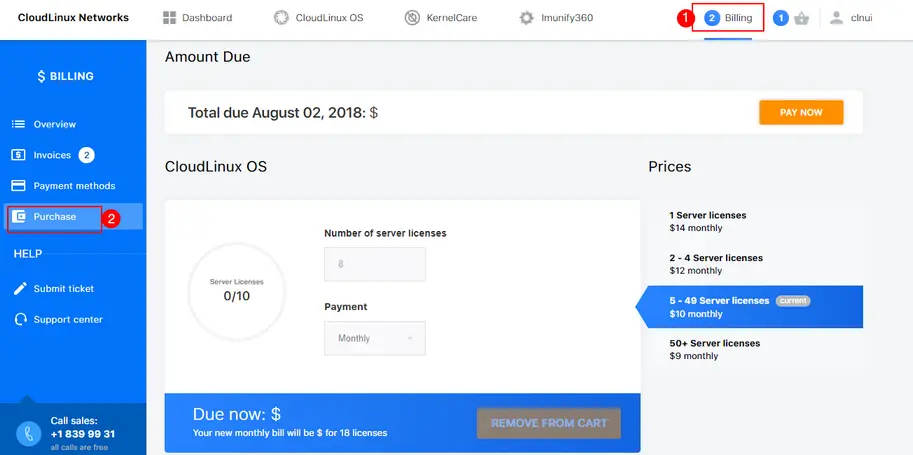
To buy new CloudLinux license(s) go to Billing → Purchase. Here you can see the number of your Server Licenses (used/limits).
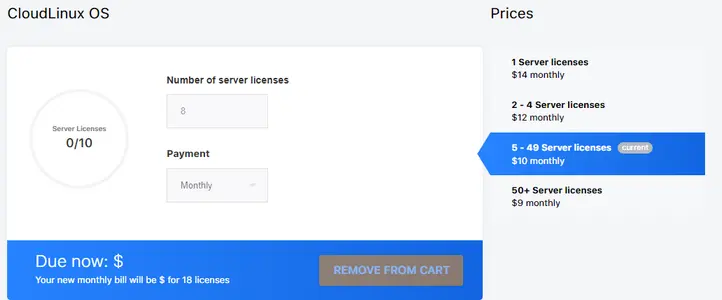
Specify the number of server licenses and choose Payment method (monthly or yearly). Your current price is displayed on the right side. The prices depend on the number of server licenses that you already have (or will have after the purchase). The bigger the number of server licenses, the lower the price. Then click Add to Cart. This will activate Cart menu in the top right corner of the page. To complete your purchase, click Cart icon, you will be redirected to the Cart page. To remove a purchase from the cart, click Remove From Cart button.
CloudLinux OS Shared PRO
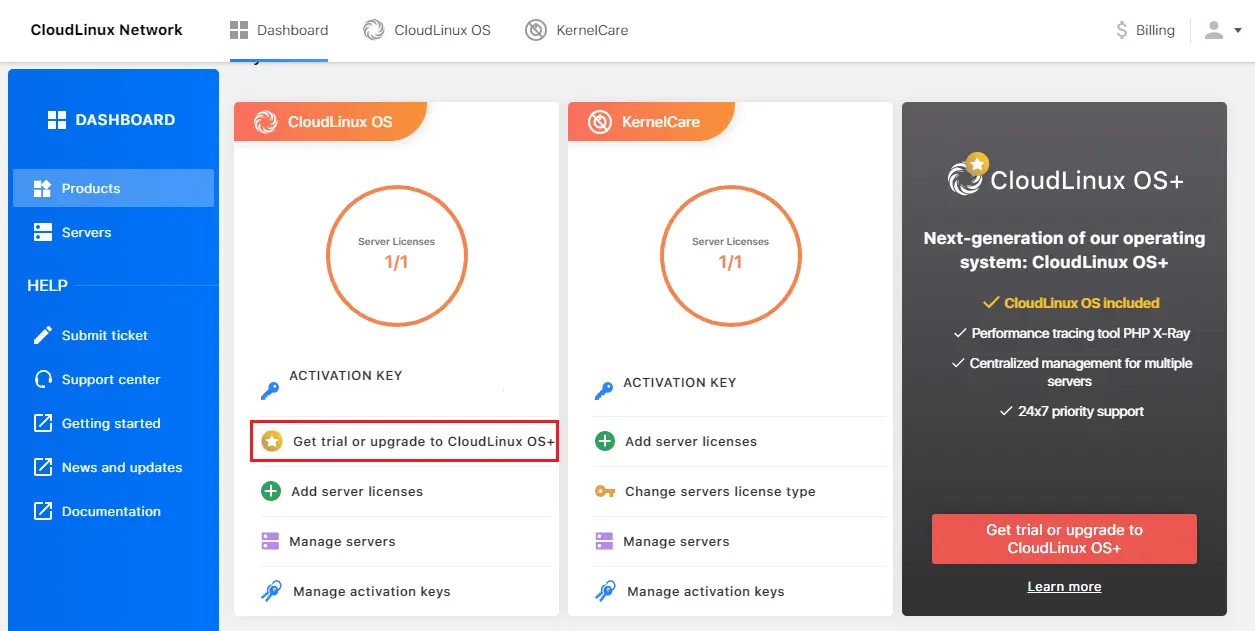
If you need to purchase CloudLinux OS Shared PRO licenses, you need to upgrade your CLN account into CloudLinux OS Shared PRO type:
Note
All CloudLinux OS licenses in your CLN account are automatically upgraded to CloudLinux OS Shared PRO if you perform the account type upgrade.
You can revert the account type to non CloudLinux OS Shared PRO anytime by clicking the link in the same box.
KernelCare
Note
Information given in this section applies to all licenses of KernelCare family (e.g. KernelCare+, KernelCare Enterprise)
To buy new KernelCare license(s) go to Billing → Purchase. Here you can see the number of your Server Licenses (used/limits).
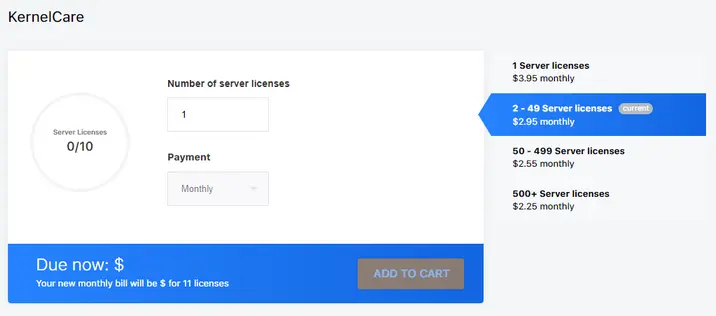
Specify the number of server licenses and choose Payment method (monthly or yearly). Your current price is displayed on the right side. The prices depend on the number of server licenses that you already have (or will have after the purchase). The bigger the number of server licenses, the lower the price.
Then click Add to Cart . This will activate Cart menu in the top right corner of the page. To complete your purchase, click Cart icon, you will be redirected to the Cart page. To remove a purchase from the cart, click Remove From Cart button.
Imunify360
To buy new Imunify360 license(s) go to Billing → Purchase. Here you can see the number of your Server Licenses (used/limits).
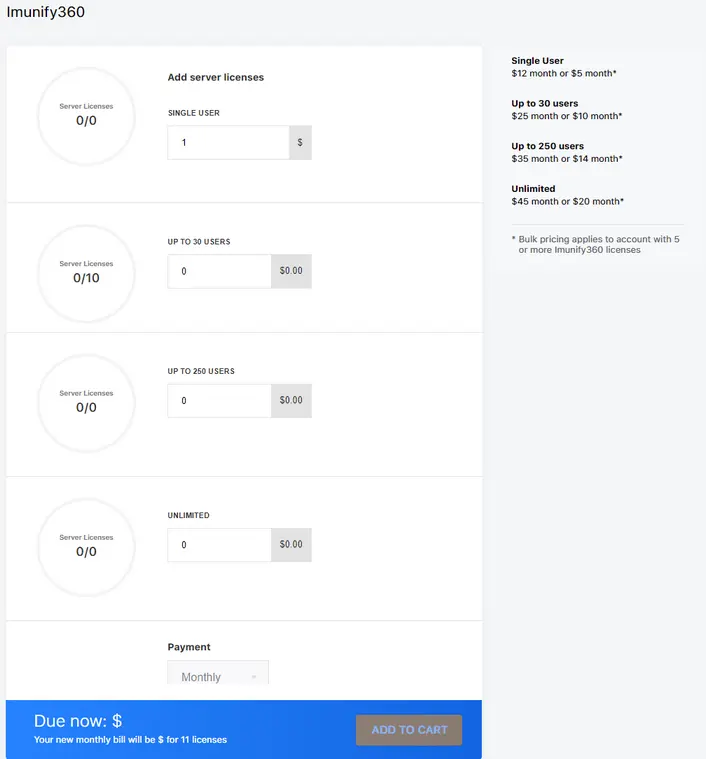
Specify the number of server licenses for each License Type (Single User, Up to 30 users, Up to 250 users, Unlimited) and choose Payment method (monthly or yearly). Your current price is displayed on the right side. The prices depend on the number of server licenses that you already have (or will have after the purchase). The bigger the number of server licenses, the lower the price.
Then click Add to Cart. This will activate Cart menu in the top right corner of the page. To complete your purchase, click Cart icon, you will be redirected to the Cart page. To remove a purchase from the cart, click Remove From Cart button.
ELS
Note
Information given in this section applies to all licenses of ELS family (e.g. ELS for CentOS, ELS for Oracle Linux, ELS for Ubuntu)
To buy new ELS license(s) go to Billing → Purchase. Here you can see the number of your Server Licenses (used/limits).
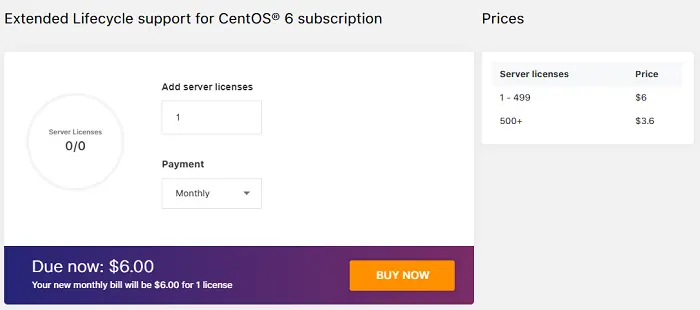
Specify the number of server licenses and choose Payment method (monthly or yearly). Your current price is displayed on the right side. The prices depend on the number of server licenses that you already have (or will have after the purchase). The bigger the number of server licenses, the lower the price.
Then click Add to Cart . This will activate Cart menu in the top right corner of the page. To complete your purchase, click Cart icon, you will be redirected to the Cart page. To remove a purchase from the cart, click Remove From Cart button.
Cart
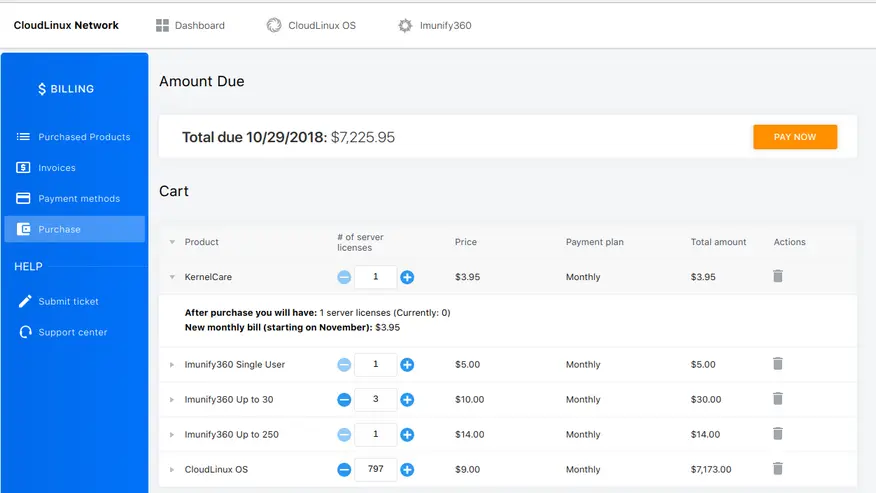
When you have added some products to a cart, Cart menu in the top right corner of the page is activated. To complete a purchase click Cart icon. You will be redirected to a Cart page, where you can see your Total Due and Due Date and all products you’ve added to cart.
To pay for all purchased products, click Pay Now button. Please proceed with the instructions on the screen to complete the purchase.
The Cart Table contains the following columns:
- Product — a name of a purchased product
- Number of server licenses — how many licenses you've bought
- Price — the price for one product license
- Payment plan — selected payment plan
- Total amount — the total amount of money you should pay for the selected number of licenses
- Actions — you can remove an item from the cart. Click Bin icon and proceed with confirming your action