CloudLinux WHMCS Plugin
The CloudLinux WHMCS Plugin provisions and manages CloudLinux, KernelCare, and Imunify360 licenses through CLN. A license can be sold as a standalone WHMCS product, as an optional product addon, or as a configurable option of another service such as a VPS. Bundle licenses are also supported for reseller accounts that have been explicitly granted access to them in CLN.
The plugin provides:
- IP-based and key-based license provisioning, depending on the selected product
- automatic license creation and termination
- IP license migration when the service IP changes for standalone products, module-backed addons, and configurable options
- deferred provisioning for module-backed addons and configurable options when a VPS receives its Dedicated IP after the order is accepted
- license and relation lists in the WHMCS admin area
- a global policy that prevents the checkout or operator IP from being used as the server IP
Choose a provisioning model
| Model | Use it when | Where the customer selects the license | IP source | If the IP is not available yet |
|---|---|---|---|---|
| Standalone product | The license is the product being sold | A product in the WHMCS store | A required custom field or the service Dedicated IP | Module Create returns an error and the service remains Pending |
| Module-backed product addon | The license is an optional extra for a VPS or hosting service | Available Addons during checkout | The parent service custom IP field or Dedicated IP | The parent service is not blocked; the addon waits and is retried after the parent receives an IP |
| Configurable option | The customer chooses a license product or tier from a dropdown | Configurable Options during checkout | The parent service custom IP field or Dedicated IP | The parent service is not blocked; license provisioning waits for the IP |
| Product Relation (legacy workflow) | Every order of a hosting product must include a particular license | The license is included automatically and is not selected separately | A separate child license service | Parent-IP inheritance and deferred retry are not automatic; see Legacy relation workflows |
| Addon Relation (legacy workflow) | An existing non-CloudLinux product addon must trigger a separate license product | The existing product addon during checkout | A separate child license service | Parent-IP inheritance and deferred retry are not automatic; see Legacy relation workflows |
Recommended models
Use a required custom IP field for a standalone IP-based license. Use a module-backed product addon or configurable option for a VPS whose Dedicated IP is assigned by the provisioning system after checkout.
Supported license products
The following matrix shows which license modes the plugin supports for every value in the Product dropdown.
| Product | IP-based | Key-based | Additional settings |
|---|---|---|---|
CloudLinuxLegacy | Yes | No | — |
CloudLinuxSolo | Yes | No | — |
CloudLinuxAdmin | Yes | No | — |
CloudLinuxSharedPro | Yes | No | Requires the corresponding CloudLinux OS Shared Pro entitlement in CLN |
KernelCare | Yes | Yes | Key Limit is available in key-based mode |
KernelCarePlus | Yes | No | IP-based only |
Imunify360 | Yes | Yes | Select an Imunify360 license tier; Key Limit is available in key-based mode |
Bundle Licenses | Yes | No | Available only to reseller accounts explicitly entitled to bundles in CLN |
For Imunify360, the available tiers include Single User, up to 30 users, up to 250 users, Unlimited, and ImunifyAV+. The five-user tier is displayed only when it is enabled in the module installation.
The Create Key based license and Key Limit fields apply only to KernelCare and Imunify360. The module hides and ignores these fields for all IP-only products, including KernelCarePlus and Bundle Licenses.
Bundle license availability
Bundle Licenses is not a general-purpose product type available to every reseller. It can be used only when CloudLinux has enabled one or more bundles for the reseller account in CLN. The rest of this guide uses Imunify360, which is a standard license product, so the examples apply to a wider audience.
CLN entitlements
The matrix describes module capabilities. The reseller account must also be authorized to create the selected product and tier in CLN.
Install or update the plugin
- Back up the WHMCS files and database.
- Download the module archive:
- Extract the archive into the WHMCS installation directory. Allow it to overwrite the existing module files when updating.
- Run the database migration from the WHMCS server:
php <whmcs_root>/clDeploy.php --migrate
- In WHMCS, open System Settings → Addon Modules.
- Activate CloudLinux Licenses Addon if it is not active.
- Click Configure, grant access to the required administrator roles, and save the settings.
The migration is safe to run after every update. It creates or updates the module tables, including the durable license state used to track the exact registered IP or key. No manual database changes are required.
Updating an existing installation
Do not deactivate the addon as part of a normal update. Copy the new files over the existing installation and run the migration command.
CloudLinux Licenses Addon
The installation contains two cooperating WHMCS modules:
CloudLinuxLicensesis the server module attached to a product or product addon. It creates, changes, suspends, unsuspends, and terminates an individual CLN license.- CloudLinux Licenses Addon is the addon module that provides the administration page and registers the WHMCS lifecycle hooks. It manages relations between non-CloudLinux services and license products. For module-backed addons and configurable options, it also reconciles deferred provisioning, follows parent-service IP changes, and cleans up tracked licenses when services are removed.
The addon module must remain active for Product Relations, Addon Relations, Configurable Options Relations, deferred provisioning, and automatic parent/child lifecycle handling to work.
Do not deactivate the addon during an update
Deactivation removes the relation and runtime-connection tables. Activating it again recreates empty tables, so the configured Addon, Product, and Configurable Options Relations must be restored. For a normal update, overwrite the module files and run clDeploy.php --migrate without deactivating the addon.
Addon administration tabs
Open Addons → CloudLinux Licenses Addon. The page contains five tabs:
| Tab | Purpose |
|---|---|
| Licenses List | Standalone licenses and license products created through Product, Addon, or Configurable Options Relations |
| Addon Licenses List | Licenses stored directly on product addons whose Module Name is CloudLinuxLicenses |
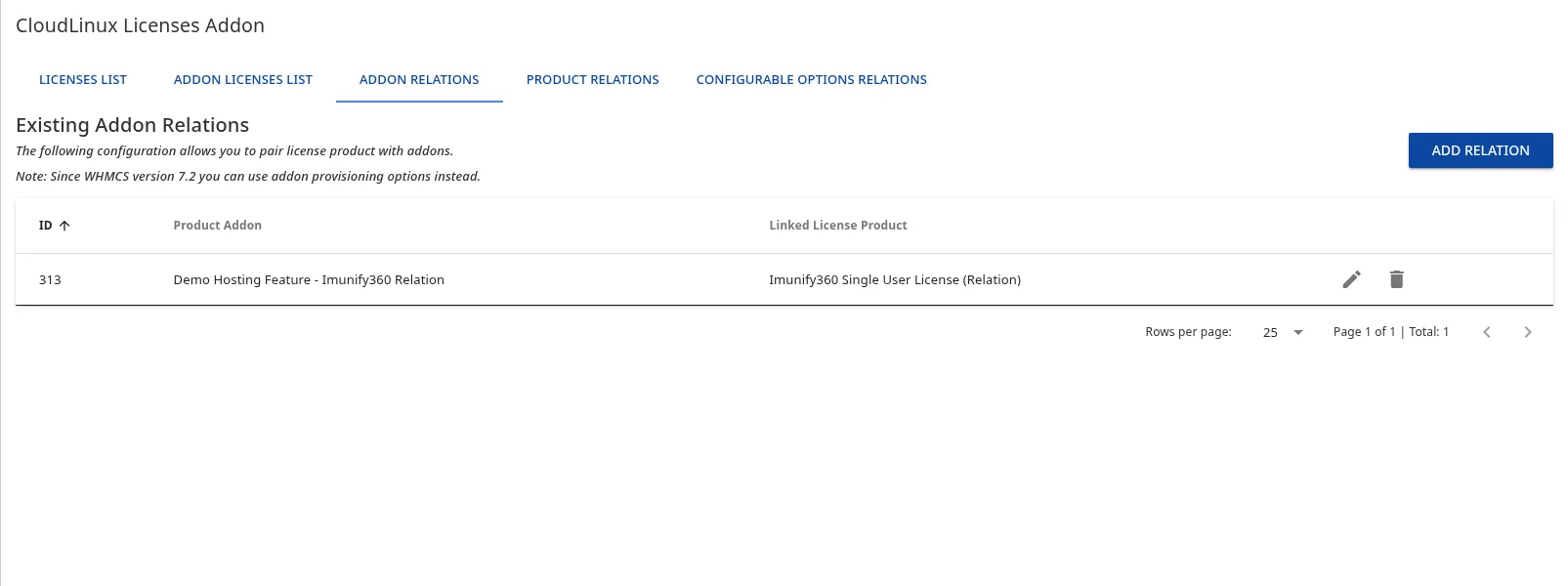
| Addon Relations | Legacy workflow that maps an existing non-CloudLinux product addon to a hidden CloudLinux license product |
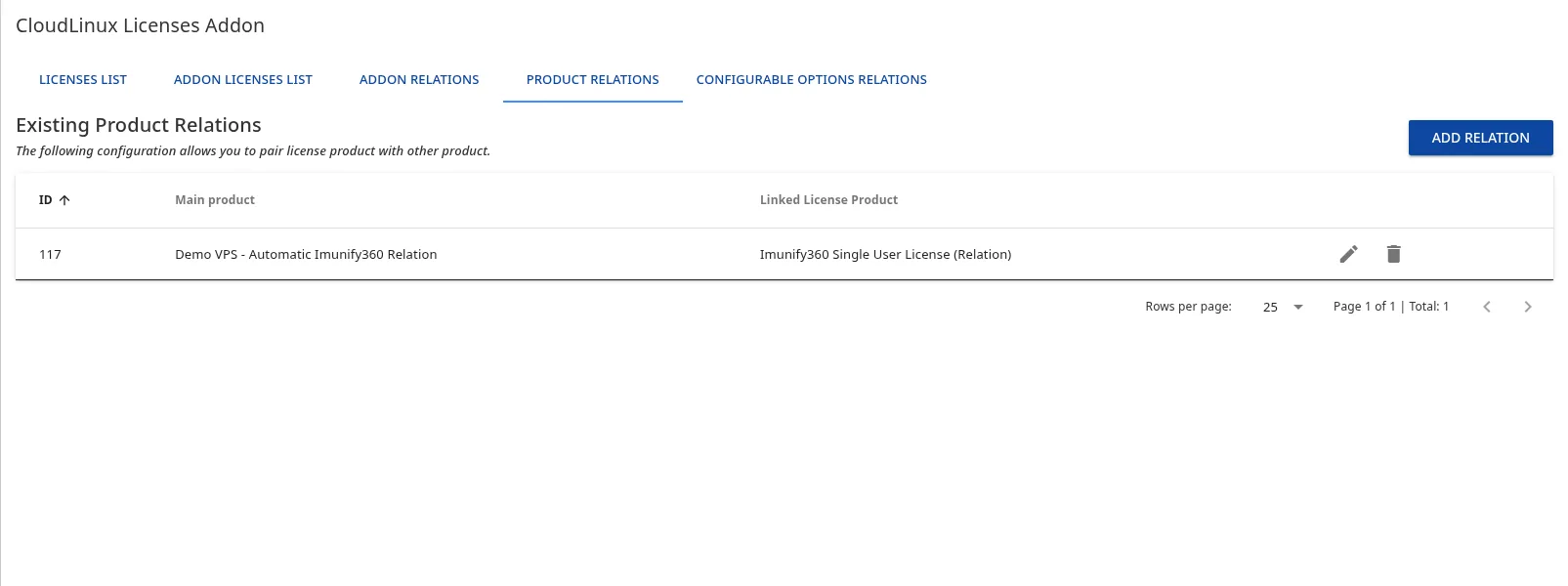
| Product Relations | Legacy relation workflow that automatically includes a hidden license product with a parent hosting product |
| Configurable Options Relations | Maps individual dropdown, radio, or checkbox values to hidden license products |
The list tabs support filtering by client, product or addon, IP address, and license key. Relation rows can be added, edited, and deleted from the corresponding relation tab.
Module-backed and legacy product-addon workflows
There are two different ways to use a WHMCS product addon:
- Module-backed addon — recommended for current WHMCS versions. Set the product addon's Module Name directly to
CloudLinuxLicensesand configure its CLN product. The license belongs to the addon service itself and appears in Addon Licenses List. This is the workflow described in Scenario 2. - Addon Relation — legacy compatibility workflow. Keep the existing product addon independent of the CloudLinux module, create a separate hidden
CloudLinuxLicensesproduct, and map the two under Addon Relations. Activating the addon creates a separate child license service, which appears in Licenses List.
Use an Addon Relation when an existing addon must remain independent or when compatibility with an older configuration is required. Do not configure the same addon as module-backed and also map it through Addon Relations, because these are separate provisioning models.
Legacy relation workflows
Product Relations and Addon Relations are retained for compatibility with installations that use the plugin's older child-service architecture. Both workflows create a separate free child service for the linked license product and record its relationship with the parent service.
Legacy workflow limitations
In version 1.3.23, Product Relations and Addon Relations do not provide the same deferred IP provisioning and parent-IP synchronization implemented for module-backed product addons and configurable options.
For an IP-based license:
- enable Do not use Order IP on the hidden license product so an automatic provisioning attempt cannot register the checkout or operator IP;
- a related license may not be provisioned automatically when the parent receives its Dedicated IP later;
- changing the parent service IP does not automatically move the related license to the new address;
- before canceling or deleting an order, run the related license service's Terminate action and verify in CLN that the license was removed.
Use a module-backed product addon or configurable option when the server IP can be assigned or changed after checkout.
Addon Relations
Use Addon Relations only when an existing regular product addon must remain independent of the CloudLinuxLicenses provisioning module:
- Create and configure a hidden
CloudLinuxLicensesproduct for the license. - Open Addons → CloudLinux Licenses Addon → Addon Relations.
- Click Add Relation.
- Select the existing regular addon under Product Addon and the hidden license product under Linked License Product.
- Save the relation.
Activating the regular addon creates a separate free child service for the linked license product. For current WHMCS versions, prefer a module-backed product addon unless compatibility with an existing relation-based configuration is required.
Product Relations
Use Product Relations when every instance of a VPS or hosting product must include a license without asking the customer to select it:
- Create and configure a hidden
CloudLinuxLicensesproduct for the license. - Open Addons → CloudLinux Licenses Addon → Product Relations.
- Click Add Relation.
- Select the parent product under Main product and the hidden license product under Linked License Product.
- Save the relation.
The related license product is created as a free child service. Include its commercial cost in the parent product instead of pricing the hidden license product separately.
For an IP-based related license, enable Do not use Order IP on the hidden license product. After WHMCS creates the child license service, enter the correct server IP on that child and run its Create module action. If the parent IP changes later, update the related license service separately.
Administrative and client operations
For a service using CloudLinuxLicenses, the WHMCS administrator can:
- create and terminate the license;
- suspend or unsuspend an IP-based license;
- view its registered IP or key and product details;
- change the license IP or replace an existing license key.
For key-based licenses, suspend and unsuspend do not remove or recreate the key. In the client area, the customer can view the license details and change the registered IP or key for an active service.
Module-backed addon and configurable-option licenses participate in deferred provisioning and follow parent-service IP changes. Their stored License IP is updated after a successful move. Hard-deleting a parent service also cleans up tracked module-backed addon and configurable-option licenses.
Product Relation child services receive suspend, unsuspend, and terminate actions when the corresponding module action runs for the parent service. An Addon Relation child is terminated when the mapped regular addon is terminated. These child services do not participate in automatic parent-IP reconciliation. Follow the operational precautions in Legacy relation workflows before canceling or deleting an order.
Connect a product to CLN
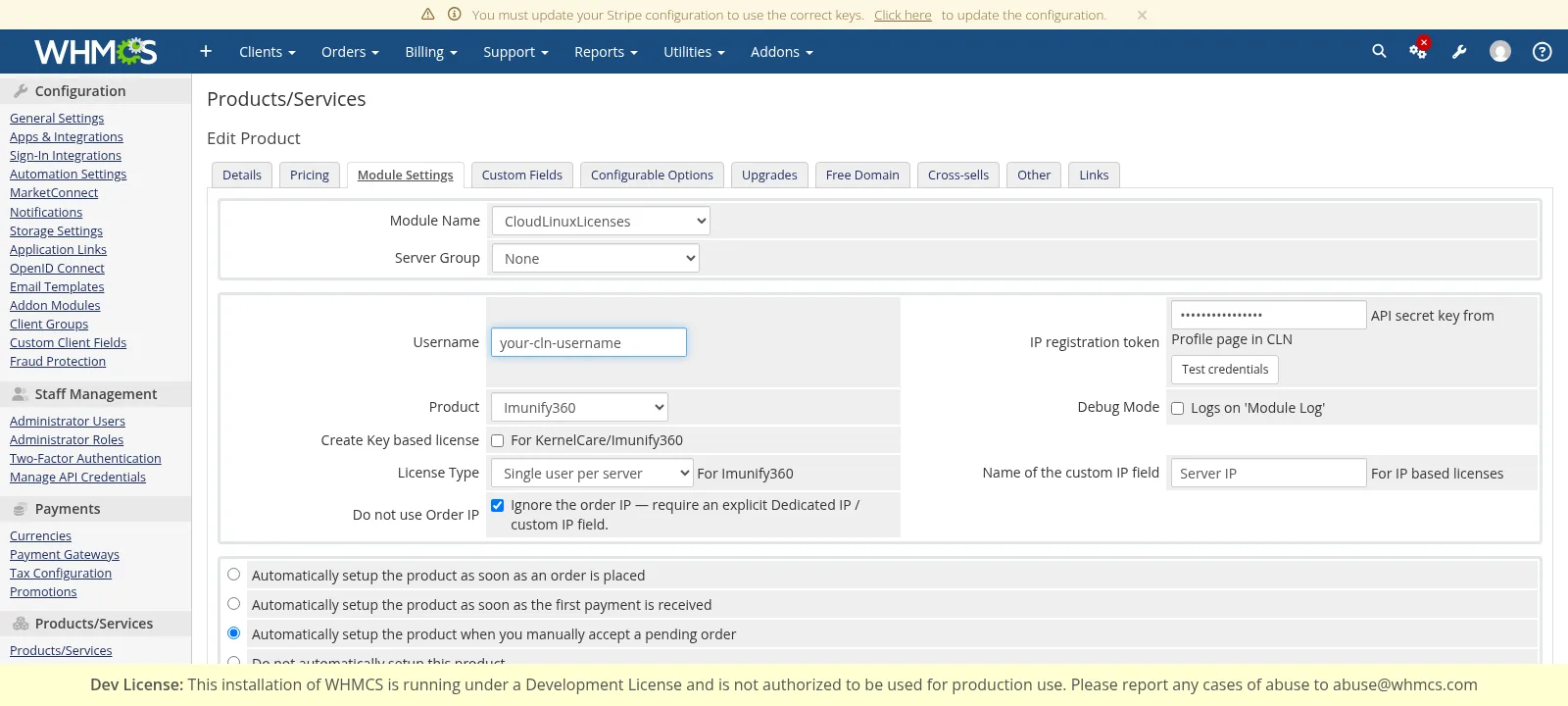
Open the product or product addon, select the Module Settings tab, and set Module Name to CloudLinuxLicenses.
| Setting | Description |
|---|---|
| Username | The CLN reseller username |
| IP registration token | The API secret key from the CLN Profile page |
| Test credentials | Verifies the saved credentials against CLN |
| Product | The license product from the support matrix |
| License Type | The Imunify360 tier; shown only for Imunify360 |
| Create Key based license | Enables key mode for KernelCare or Imunify360 |
| Key Limit | Maximum number of servers for the key |
| Name of the custom IP field | Exact name of the WHMCS custom field that contains the server IP |
| Bundle | A CLN bundle; shown only for Bundle Licenses |
| Do not use Order IP | Disables the checkout IP fallback for this product |
| Debug Mode | Sends module diagnostics to the WHMCS Module Log |
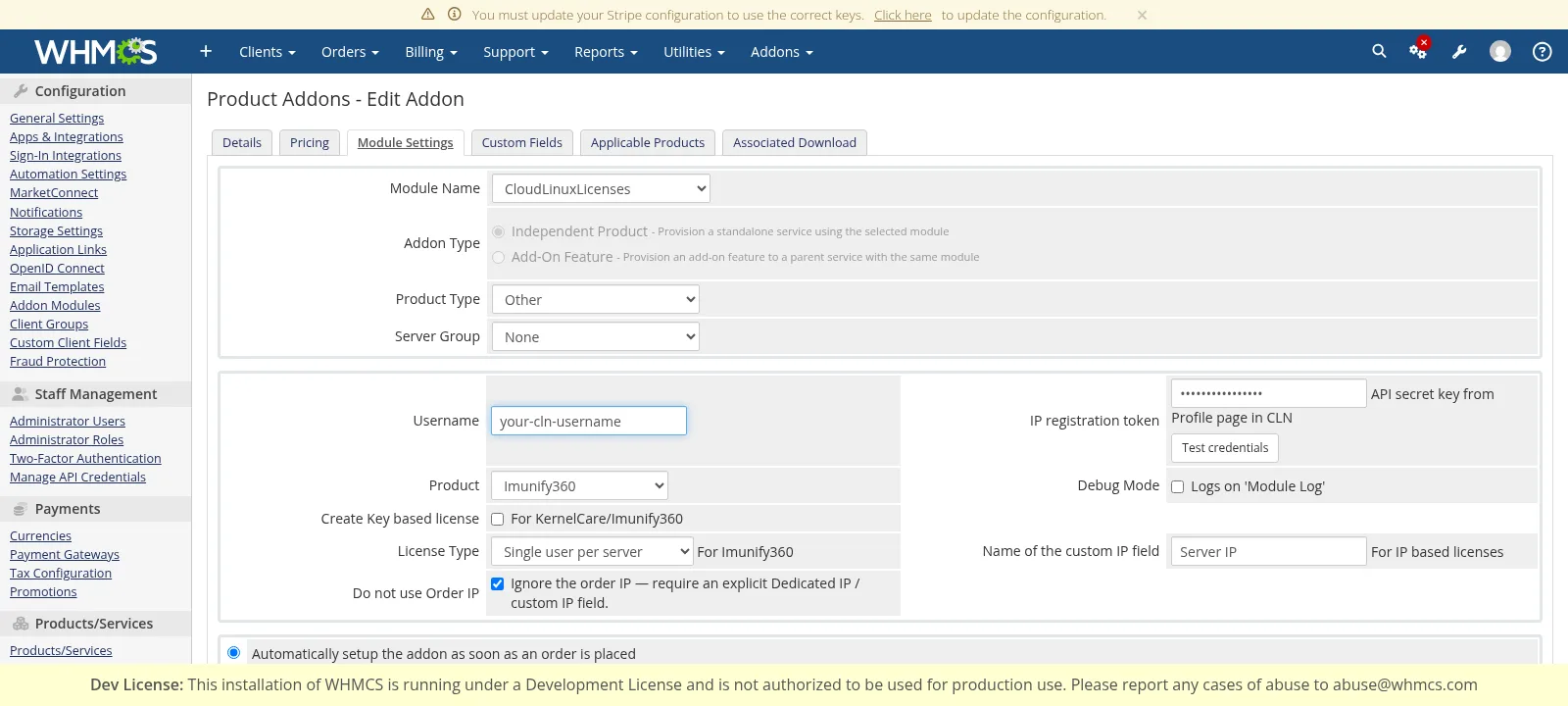
The following example configures an IP-based Imunify360 Single User license. The same IP settings apply to all IP-based products.
Configure the server IP source
For a new IP-based license, the module resolves the IP in this order:
- The custom field named in Name of the custom IP field
- The WHMCS service Dedicated IP
- The order originator IP, but only when the fallback is allowed
If the custom field and Dedicated IP contain different values, the custom field takes precedence. After successful provisioning, the module stores the exact registered IP and uses that value for later changes and cleanup.
Recommended policy: never use the order IP
The order IP is the address from which checkout was submitted. For an order created or accepted by an administrator, it can be the operator IP. It is not a reliable server address.
There are two controls:
- Never use Order IP in System Settings → Addon Modules → CloudLinux Licenses Addon → Configure disables the fallback globally.
- Do not use Order IP in a product's Module Settings disables the fallback for that product.
The global setting overrides every product setting.

Legacy order IP fallback
For compatibility with existing installations, the order IP can still be used when both controls are disabled. This can be useful in legacy workflows where the customer changes the address after activation, but it is not recommended for server licenses.
The order IP fallback is never written into the service Dedicated IP merely by reading it. This prevents a browser or operator address from appearing as if it were the customer's server address.
Scenario 1: standalone license product
Use this model when the customer orders the license itself rather than a parent VPS product.
Create the product
- Open System Settings → Products/Services → Products/Services.
- Create a product group, or select an existing license group.
- Create a product with Product Type set to Other.
- Configure its name, description, pricing, and welcome email.
- Open Module Settings and select
CloudLinuxLicenses. - Enter the CLN credentials and click Test credentials.
- Select the license product. For Imunify360, also select the required License Type tier.
- For an IP-based license, enter a custom field name such as
IPin Name of the custom IP field. - Enable Do not use Order IP unless the legacy fallback is intentional.
- Select the required WHMCS automatic setup rule and save the product.
Require the customer IP at checkout
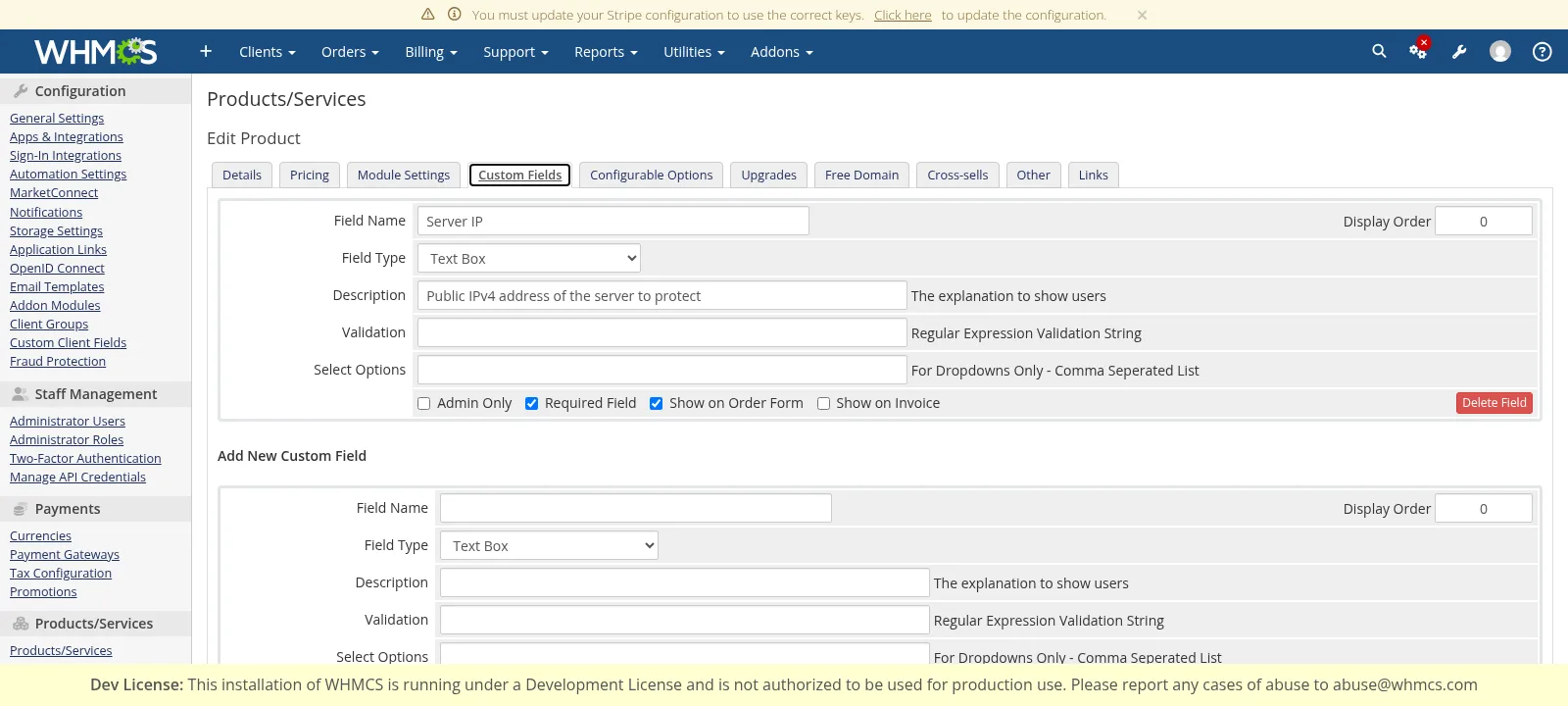
- Open the product's Custom Fields tab.
- Add a Text Box field with exactly the same name used in Name of the custom IP field.
- Enable Required Field.
- Enable Show on Order Form.
- Save the product.
The customer must now enter the server IP while ordering:
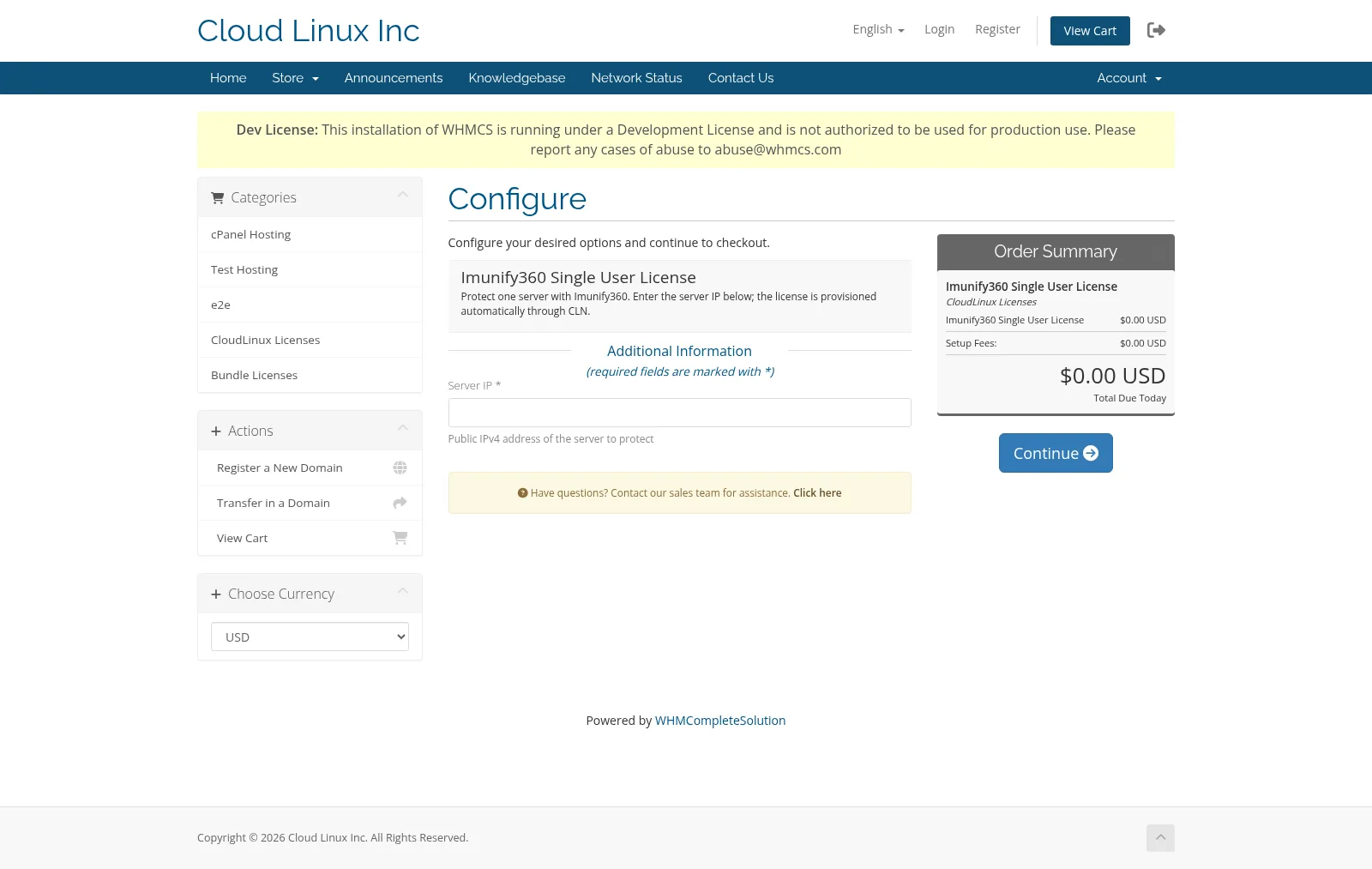
Missing IP on a standalone service
If Order IP is disabled and neither the custom field nor Dedicated IP is set, Module Create returns Server IP required and the service remains Pending. Enter the real IP on the service and run Create again. The WHMCS order acceptance form does not provide a Dedicated IP field, so collecting a required custom field during checkout is the safest automatic workflow.
Scenario 2: optional product addon
Use a module-backed product addon when the customer can add a license to a VPS or hosting product. The parent product does not need to use the CloudLinux license module.
Create and attach the addon
- Open System Settings → Products/Services → Product Addons.
- Create an addon and configure its name, description, billing cycle, and price.
- Enable Show on Order.
- In Applicable Products, select the parent VPS or hosting products.
- Open Module Settings and select
CloudLinuxLicenses. - Enter the CLN credentials, select
Imunify360, and choose the required License Type tier. - Enable Do not use Order IP for a deferred-IP VPS workflow.
- Select an automatic setup rule. Do not select Do not automatically setup this addon if the addon must activate automatically after the parent receives its IP.
- Save the addon.
The addon is displayed during checkout for the applicable parent products:
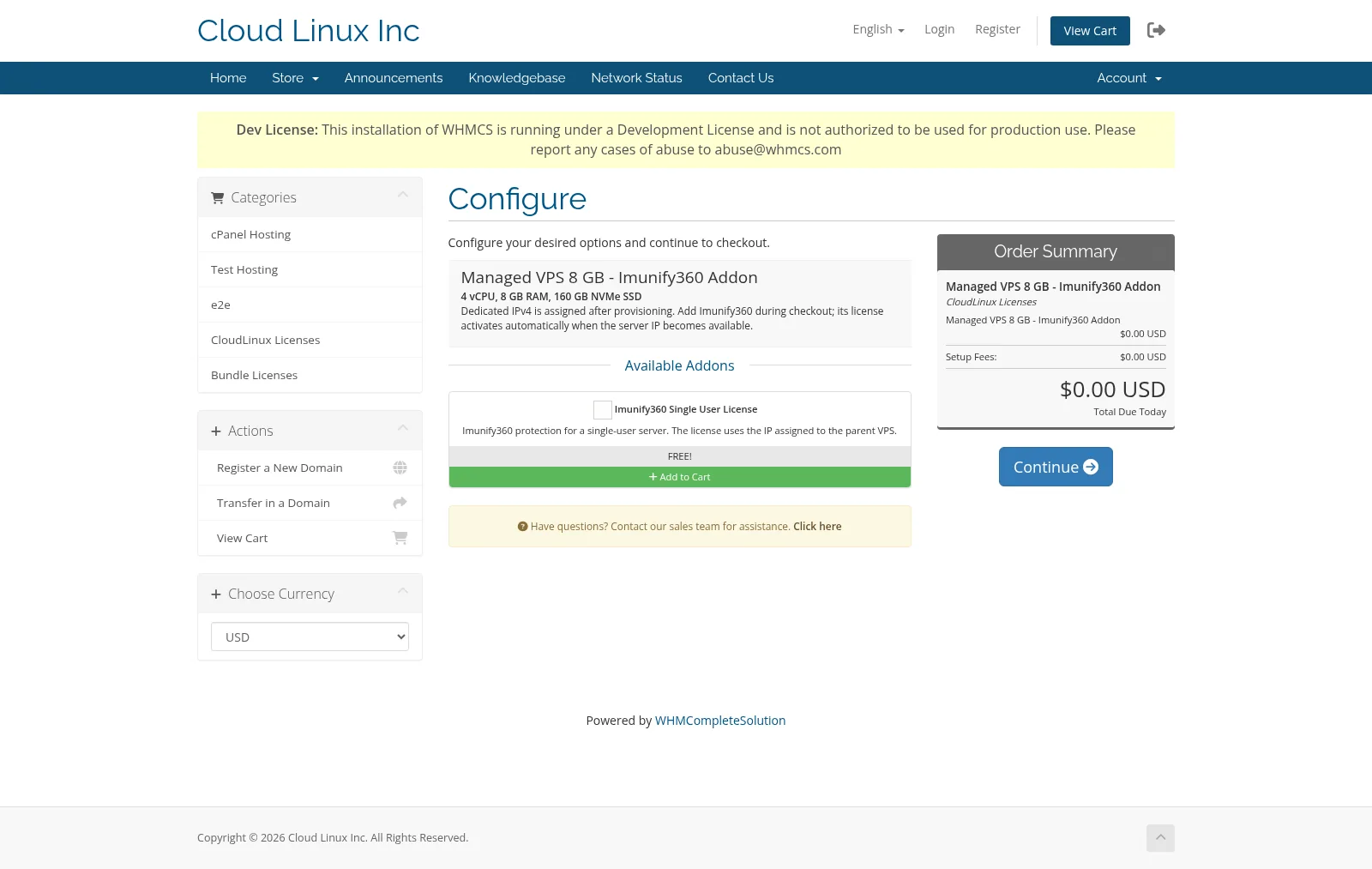
How deferred addon provisioning works
- WHMCS accepts and provisions the parent service.
- If the parent has no custom IP or Dedicated IP, the license addon stays
Pending. The parent service is not blocked. - The missing-IP attempt is recorded in the WHMCS Module Queue.
- When the order is
Activeand the parent receives a Dedicated IP or custom IP, save the parent service. The module retries the addon. - After CLN creates the license, the addon becomes
Activeand its License IP field stores the registered address.
If the parent IP later changes, the module removes the old registration, creates the license for the new IP, and updates License IP. Hard deletion of the parent service also cleans up its module-backed license addons.
Scenario 3: configurable option
Use a configurable option when the customer must select a license product or tier from a dropdown on the parent product.
Create hidden license products
Create one CloudLinux license product for every selectable value:
- Create a product with Product Type set to Other.
- Mark the product Hidden so it cannot be ordered separately.
- Select
CloudLinuxLicensesin Module Settings. - Configure the CLN credentials, product, license tier when applicable, IP field, and Order IP policy.
- Repeat for the other license choices.
Pricing for this workflow is normally configured on the configurable option values, not on the hidden license products.
Create the dropdown
- Open System Settings → Products/Services → Configurable Options.
- Create a group and assign it to the parent VPS product.
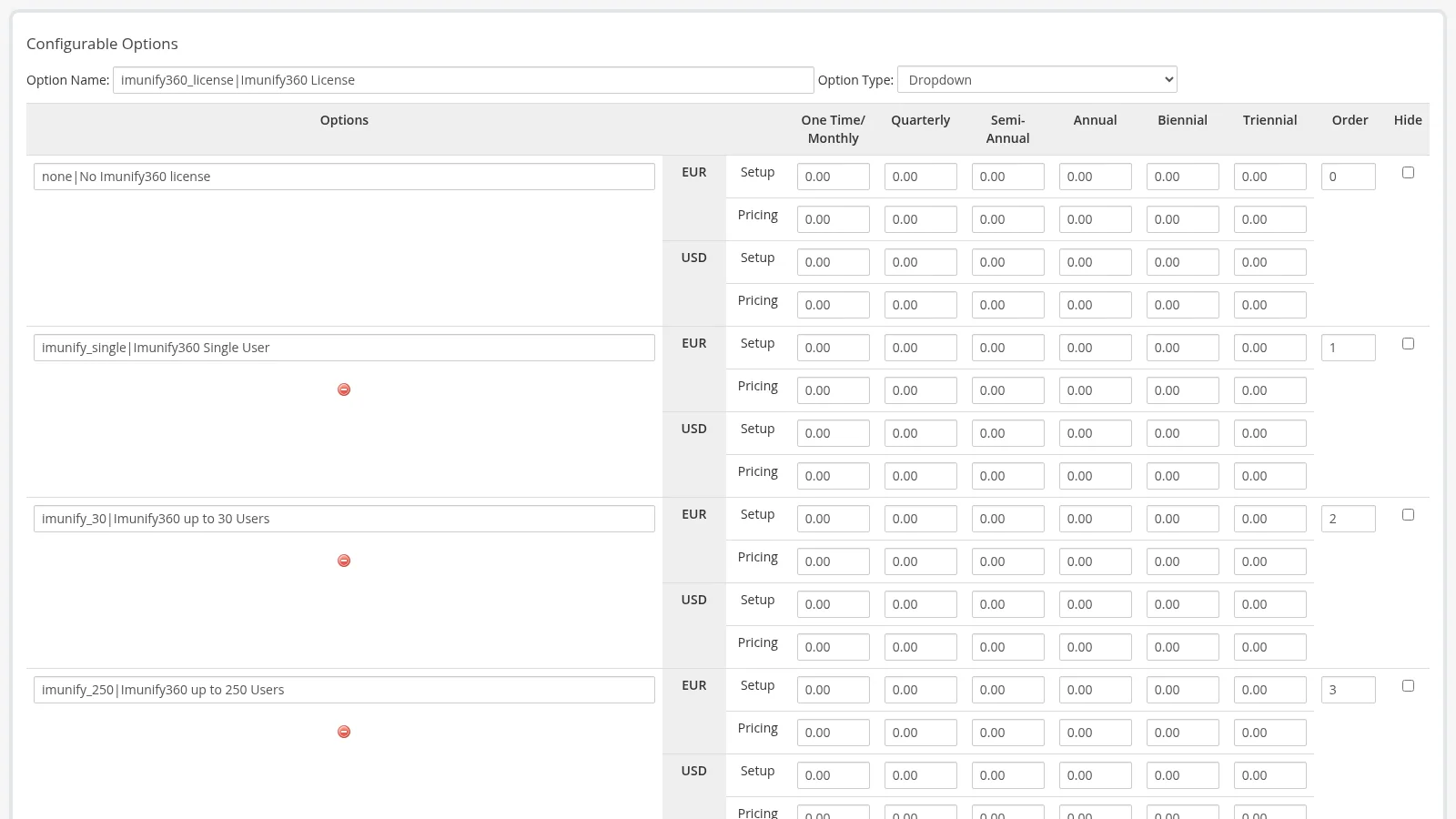
- Add a configurable option with Option Type set to Dropdown.
- Add one value for no license, followed by the license choices. WHMCS supports an internal value and a customer-facing label separated with
|, for example:
none|No Imunify360 license
imunify_single|Imunify360 Single User
imunify_30|Imunify360 up to 30 Users
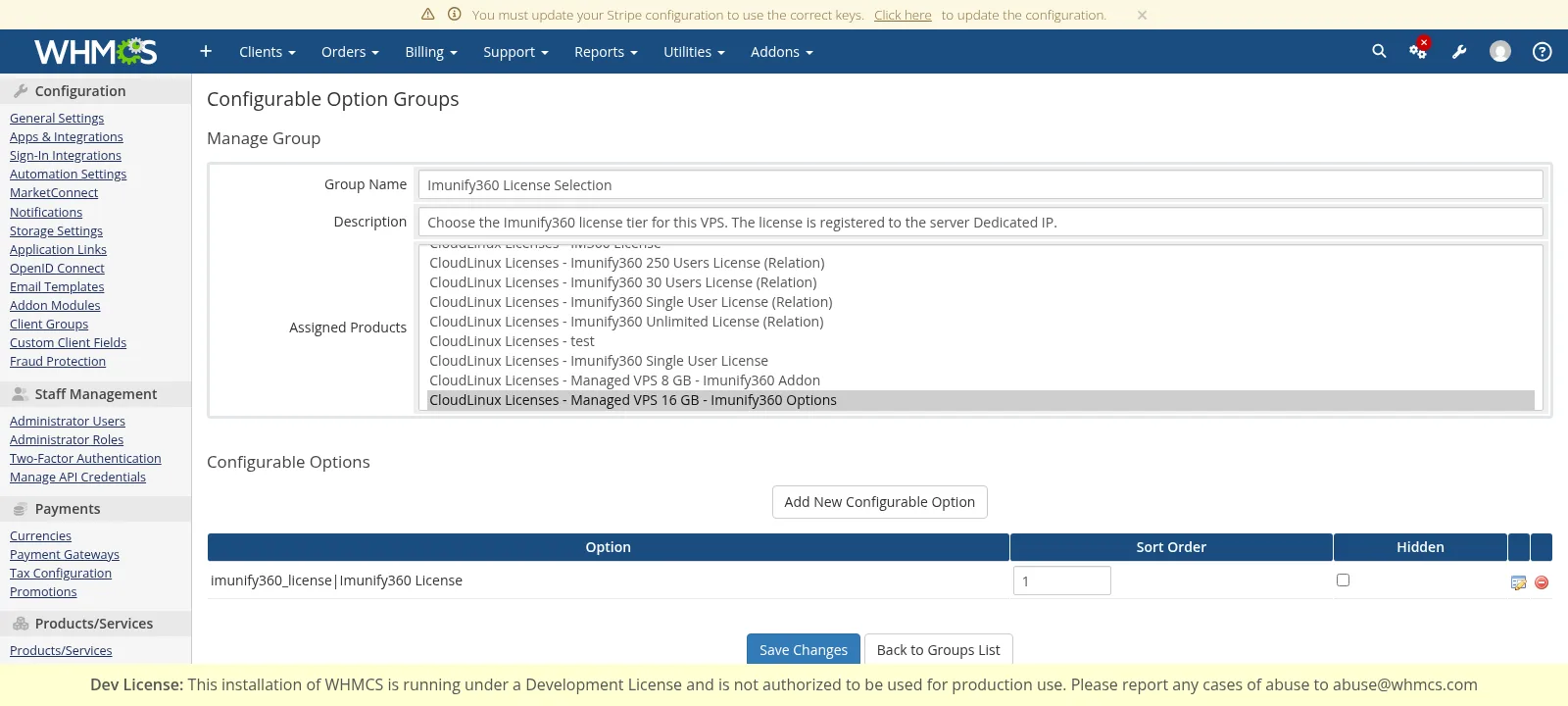
Configure the price and sort order for every value:
Map the values to license products
- Open Addons → CloudLinux Licenses Addon.
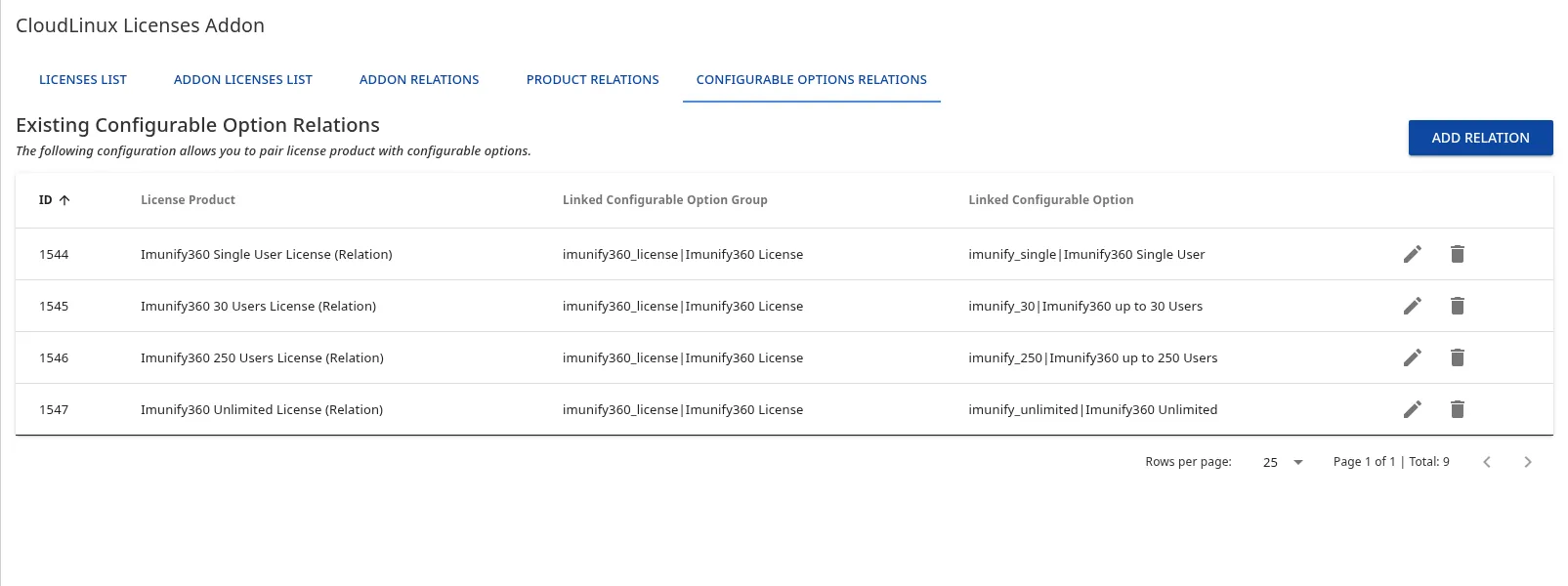
- Select Configurable Options Relations.
- Click Add Relation.
- Select the hidden license product, configurable option group, and configurable option value.
- Add one relation for every value that must create a license. Do not map the No license value.
The relation tab shows the license product associated with every selectable value:
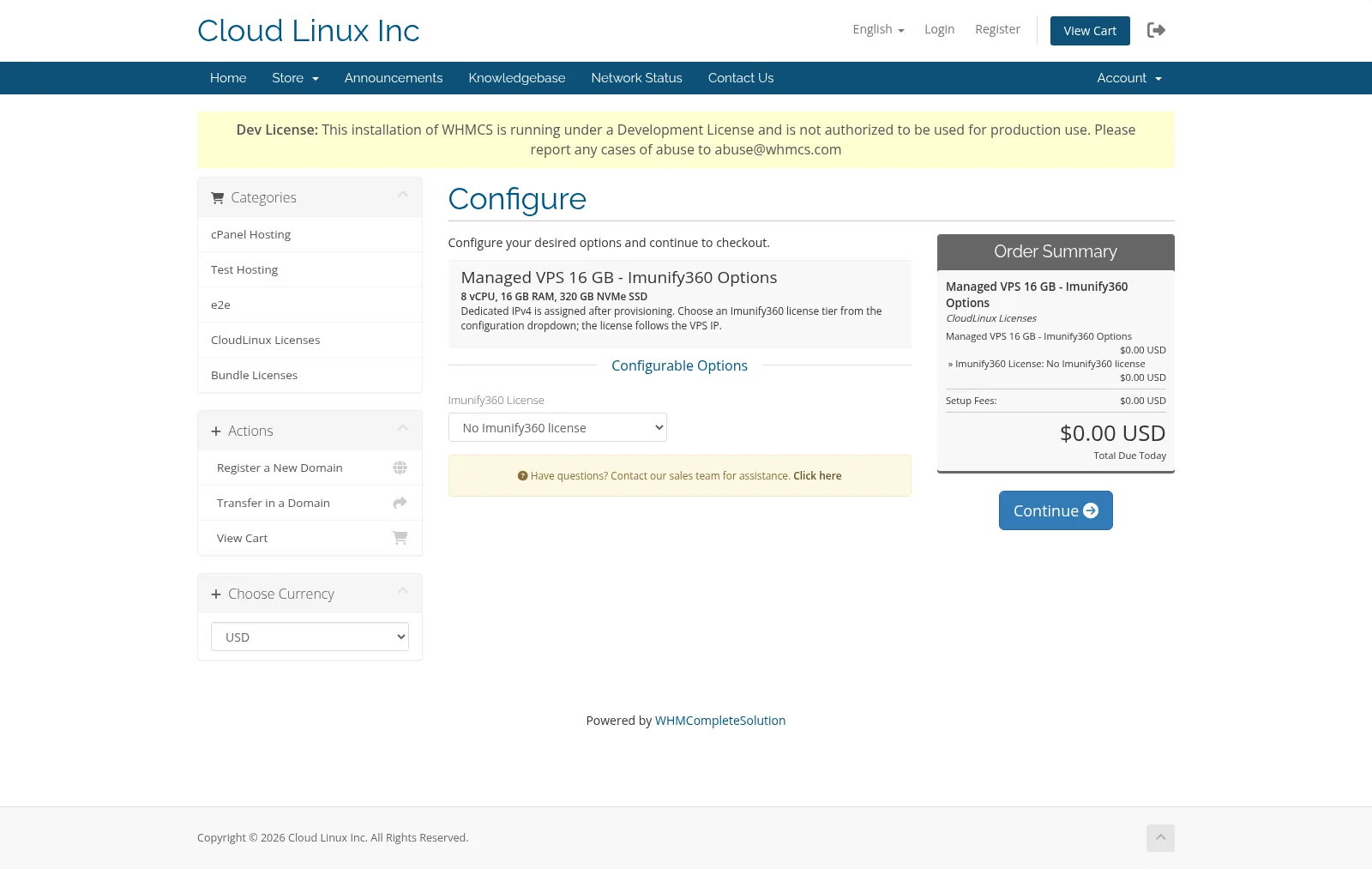
The customer sees a single license dropdown on the parent product:
How deferred configurable-option provisioning works
The parent service can become Active even when it has no IP. The license selection waits until the order is Active and the parent receives its custom IP or Dedicated IP. Saving the parent service or completing its module provisioning reconciles the selection and creates the missing license.
Changing the selected option terminates the old related license and provisions the new one. Removing the selection terminates the related license. Changing the parent IP moves all related IP-based licenses to the new address.
Configurable option limitations
Do not use the Quantity option type. Do not map multiple products of the same license type to one selected value.
Configure a Bundle license
Bundle licenses use the same standalone product, product addon, and configurable-option workflows described above. Use this product type only when bundles have been enabled for the reseller account in CLN.
- Open the relevant product or addon Module Settings.
- Select
CloudLinuxLicensesas the module. - Select
Bundle Licensesin Product. - Select one of the bundles returned for the reseller account.
- Configure the IP field and Order IP policy as for any other IP-based license.
- Save the product or addon.
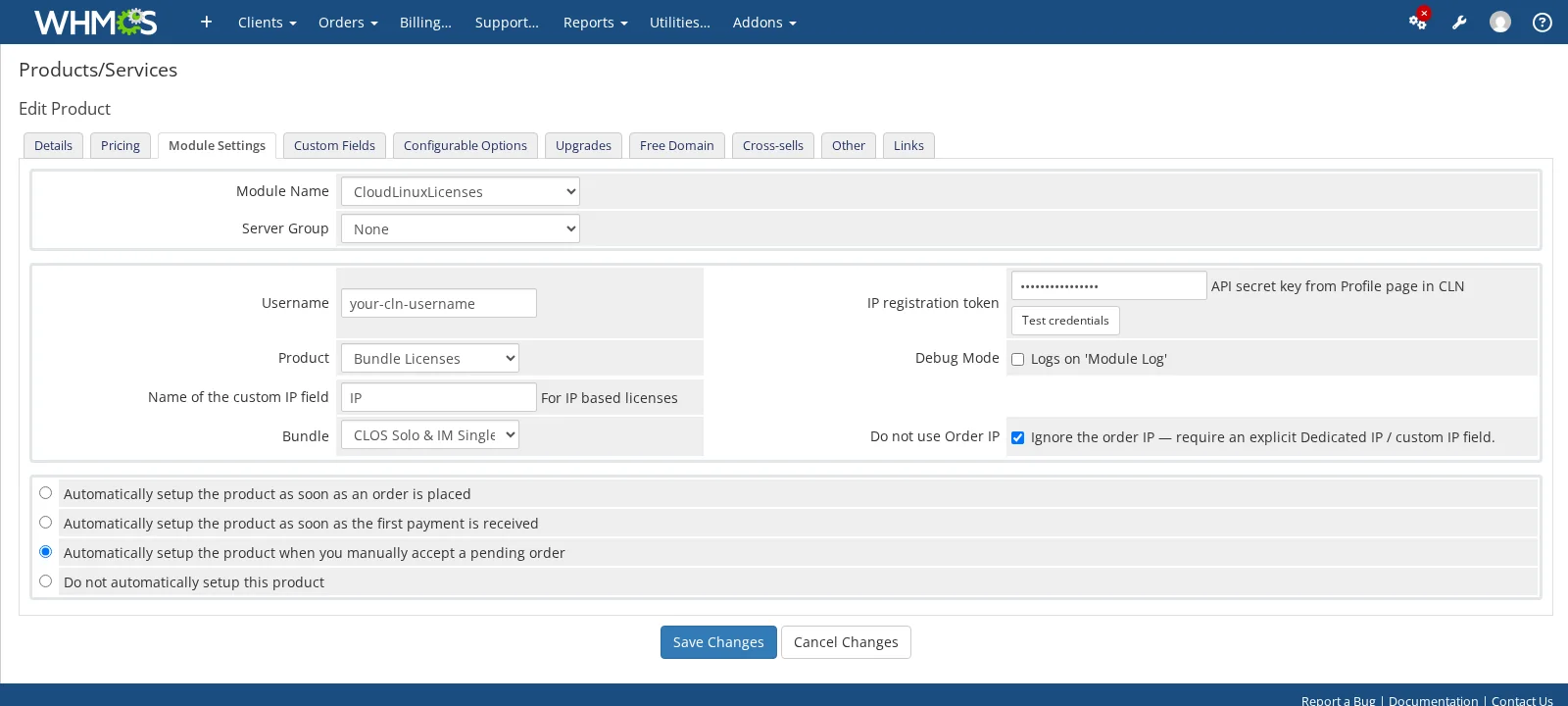
If the Bundle list is empty or CLN rejects bundle provisioning, verify that the saved credentials belong to the expected reseller and ask CloudLinux to confirm that the bundle is assigned to that account.
Provisioning behavior reference
| Event | Standalone product | Module-backed addon or configurable option | Product Relation or Addon Relation |
|---|---|---|---|
| Real IP is available | The license is created during Module Create | The license is created when the option or addon is activated | A child license service is created; verify that it contains the correct server IP before running Create |
| Real IP is missing and Order IP is disabled | Module Create fails clearly; service stays Pending | Parent service is not blocked; license waits for the parent IP | No automatic relation-specific retry; provide the IP on the child license service and run Create |
| IP becomes available later | Enter the IP and run Create again | Save or finish provisioning the active parent service; the module reconciles automatically | Update the child license service and run Create manually |
| Registered IP changes | The old registration is removed and the new one is created | IP-based licenses follow the parent IP and their stored License IP is updated | Update the related license service separately; parent-IP changes are not reconciled automatically |
| IP-based service is suspended or unsuspended | The corresponding CLN action is executed | The corresponding module action is executed for the license service | Product Relation actions follow the parent module action; Addon Relations do not add a separate suspend/unsuspend workflow |
| License service is terminated | The registered IP or key is removed from CLN | The related license is removed when its addon service or configurable selection is terminated | Run Terminate on the recorded child through the parent/addon workflow and verify the result in CLN |
| Parent service is hard-deleted | Not applicable | Tracked addon and configurable-option licenses are cleaned up | The recorded child connection is cleaned up; verify the CLN license after destructive order operations |
Key-based licenses do not use the IP resolution or deferred-IP workflow.
Verify provisioned licenses
Open Addons → CloudLinux Licenses Addon to access:
- Licenses List for standalone and related product licenses
- Addon Licenses List for module-backed product addons
- relation editors for addons, products, and configurable options
The lists can be filtered by client, product or addon, IP address, and license key.
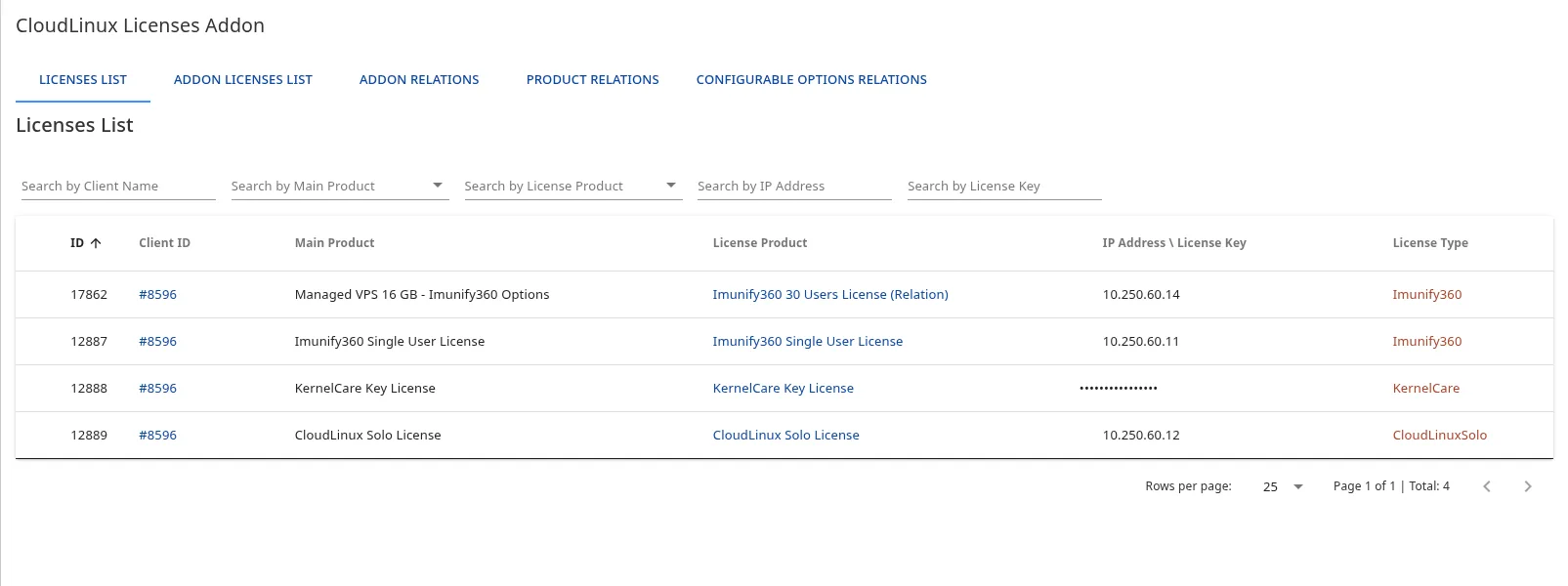
Module-backed product addons are shown separately under Addon Licenses List:
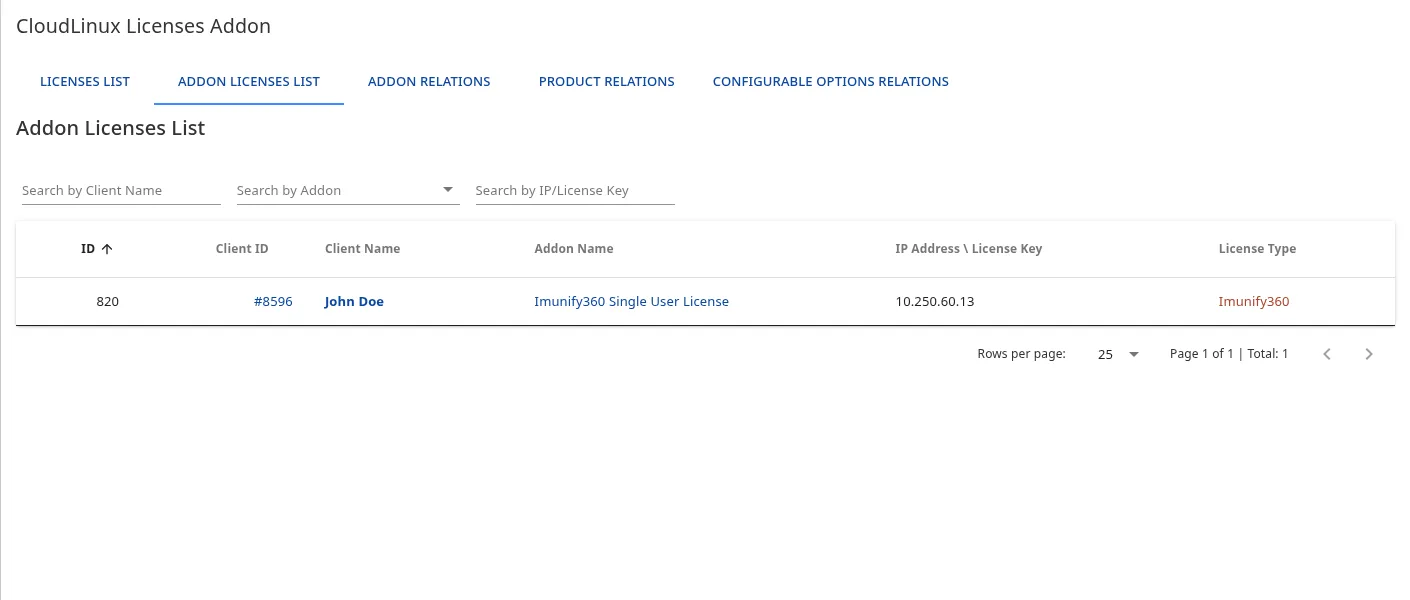
After provisioning, verify all three locations:
- The WHMCS service or addon is
Activeand displays the expected License IP or key. - The license appears in the appropriate CloudLinux Licenses list.
- CLN contains the same IP or key and the correct license product.
Troubleshooting
Delete services before product or addon definitions
Terminate or delete all associated WHMCS services before deleting their product or product-addon definition. The plugin needs the saved module settings and CLN credentials from that definition to identify and revoke the license safely.
If the definition has already been deleted, the WHMCS service record can still be hard-deleted, but the plugin cannot automatically clean up the corresponding CLN license. It records the pending cleanup in the WHMCS Module Queue and Activity Log. Reconcile the license manually in CLN before considering the service fully removed.
| Symptom | What to check |
|---|---|
Server IP required | Set the custom IP field or Dedicated IP. Alternatively, intentionally enable the legacy Order IP fallback. |
Standalone service is still Pending after adding the IP | Save the service and run the module Create command again. |
License addon remains Pending after adding the parent IP | Confirm that the order is Active, addon automatic setup is enabled, the parent IP was saved, and the Module Queue contains the retryable missing-IP Create entry. |
Parent service is Active, but configurable license is absent | Confirm that the selected value has a Configurable Options Relation and that the active parent has a valid custom IP or Dedicated IP. |
You are not authorized to do this request | Re-enter the CLN username and API secret, click Test credentials, and confirm that the reseller account has the required product or bundle entitlement. |
License already exists for IP Address | The IP is already registered in CLN. Verify ownership before removing or reassigning the existing license. |
| Bundle dropdown is empty | Save valid CLN credentials, click Test credentials, and confirm that bundles are assigned to the reseller account. |
| Wrong address is used for a license | Enable Never use Order IP globally or Do not use Order IP for the product, then provide the real server address through a required custom field or Dedicated IP. |
| Custom IP is ignored | The custom field name must exactly match Name of the custom IP field. The field belongs to the standalone service or to the parent service for addon/configurable workflows. |
Enable Debug Mode only while diagnosing a problem, then review Utilities → Logs → Module Log and the WHMCS Module Queue. Avoid leaving credential-bearing debug logs enabled longer than necessary.